
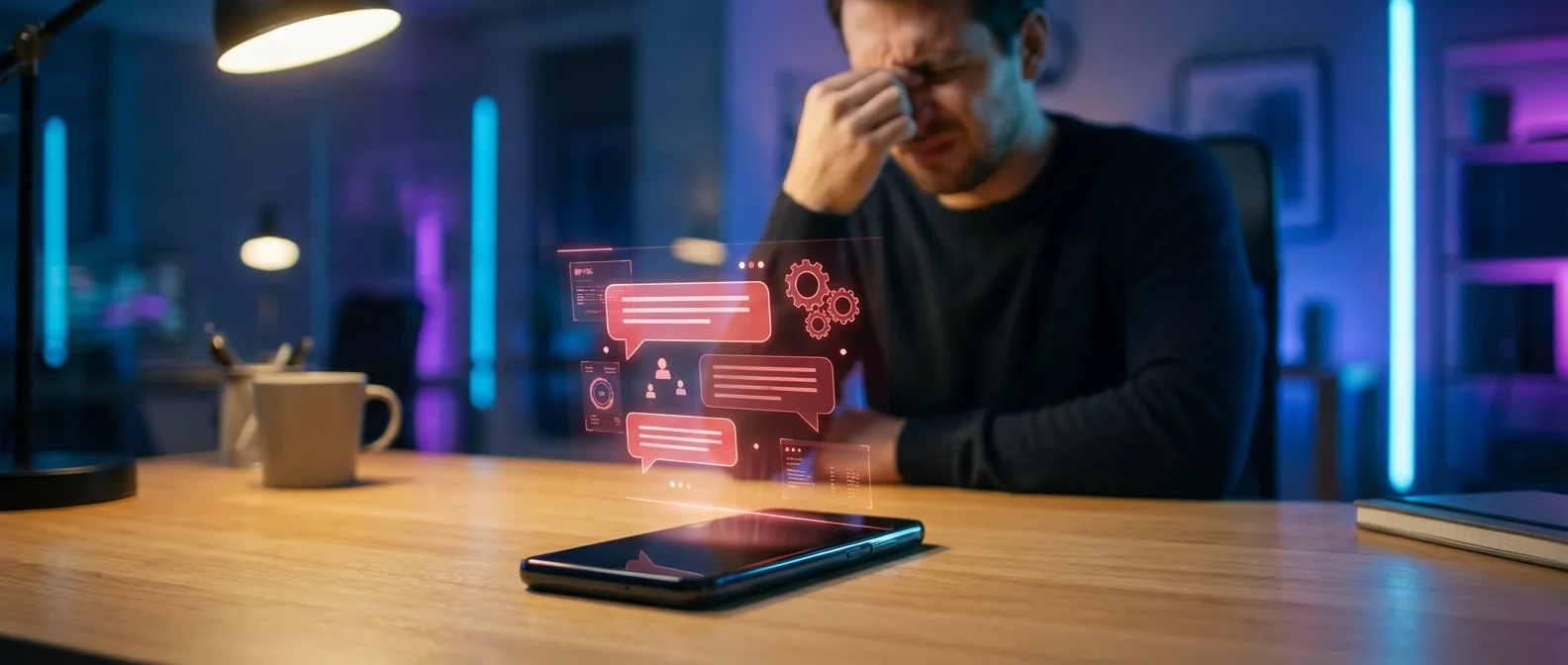
You sit down at your desk with a hot cup of coffee, determined to crush your to-do list. You place your phone face up on the desk, telling yourself you will only check it if it rings. Five minutes later, the screen lights up. It is not a call. It is an automated notification from a food delivery app, but that split-second flash of light was all it took. Twenty minutes later, you are deep in a social media rabbit hole, wondering where your morning went.
If this sounds familiar, you are not lazy, and you do not lack willpower. You are simply losing a battle against thousands of brilliant engineers whose sole job is to keep your eyes glued to that screen. Smartphones are fundamentally designed to function like slot machines in our pockets, utilizing variable rewards to trigger continuous dopamine loops. However, the true culprits are not just the apps themselves—they are the default operating system settings that most people never think to change.
Today, we are going to dive deep into the five hidden smartphone settings that are secretly draining your productivity, hijacking your focus, and spiking your cortisol levels. More importantly, we will show you exactly how to fix each of them in under 30 seconds.
1. The Psychological Trap of App Icon Badges (The Red Dots of Anxiety)
Let us start with the most insidious feature on your phone: the little red notification badges that sit on the corners of your apps. In color psychology, red is a trigger color. It signals urgency, danger, and importance. When you unlock your phone and see a red dot with a number in it, it triggers something called the Zeigarnik effect. This is a psychological principle stating that our brains remember uncompleted or interrupted tasks better than completed ones.
That tiny red dot represents an open loop. Your brain hates open loops. Even if you know that the notification is just a promotional email or a random group chat message, the cognitive load of ignoring that red dot subtly drains your mental energy. It creates a low-grade anxiety that persists until you open the app to clear the badge, at which point you are sucked into the application’s ecosystem.
The 30-Second Fix
- For iPhone (iOS): Go to Settings > Notifications. Scroll through your list of apps. For any app that is not critically urgent (like phone calls or text messages from family), toggle off ‘Badges’.
- For Android: Go to Settings > Apps & notifications > Notifications > Advanced. Turn off ‘Allow notification dots’ to remove this visual clutter globally, or customize it per app.
2. Raise to Wake and Tap to Wake (The Accidental Slot Machine)
Modern smartphones are incredibly smart—sometimes to their own detriment. Features like ‘Raise to Wake’ and ‘Tap to Wake’ were designed for user convenience, allowing you to glance at your notifications without pressing a physical button. However, from a productivity standpoint, this is a disaster.
When your phone screen lights up automatically just because you bumped your desk, picked it up to move it, or accidentally brushed it with your hand, it initiates a visual interruption. Your eyes dart to the screen instinctively. Evolution has wired us to notice sudden changes in our environment (like sudden flashes of light) as a survival mechanism. Tech companies exploit this primal reflex. Every time the screen wakes unnecessarily, it demands a micro-decision from your brain: ‘Should I look at this?’ These micro-decisions cause decision fatigue, leaving you less mental energy for your actual work.
The 30-Second Fix
- For iPhone (iOS): Go to Settings > Display & Brightness. Scroll down and toggle off ‘Raise to Wake’. You can also go to Settings > Accessibility > Touch, and disable ‘Tap to Wake’.
- For Android: Go to Settings > Display > Advanced > Lock screen display. Toggle off ‘Lift to check phone’ and ‘Tap to check phone’ (terminology may vary slightly by manufacturer).
3. Proactive Algorithmic Suggestions (The Mind-Reading Traps)
Have you ever noticed that when you swipe down on your home screen or look at your app drawer, your phone recommends the exact app you were thinking about opening? Whether it is a social media app right at lunchtime or a gaming app right before bed, iOS and Android utilize powerful machine learning algorithms to track your habits.
These features, known as Siri Suggestions or Android App Predictions, are pitched as tools to speed up your workflow. In reality, they are algorithmic enablers of bad habits. If you are trying to cut back on mindlessly scrolling through Instagram or TikTok, having your operating system proactively serve you the app icon precisely when your willpower is lowest is a recipe for failure. It removes the friction required to break a habit.
The 30-Second Fix
- For iPhone (iOS): Go to Settings > Siri & Search. Scroll down to the ‘Suggestions’ section and turn off ‘Show Suggestions on Home Screen’, ‘Show App Library’, and ‘Show When Sharing’.
- For Android: Long-press on your home screen, tap ‘Home settings’, and toggle off ‘App suggestions’.
4. Vibrant Display Configurations (The True Tone and Saturation Lure)
Your smartphone’s display is an engineering marvel, capable of producing millions of vibrant, hyper-saturated colors. Features like True Tone (on Apple) or Adaptive Color (on Android) optimize the display to make everything look incredibly appetizing. The colorful interfaces of social media apps and games are designed to be eye candy, heavily stimulating the visual cortex.
When your phone is a glowing rectangle of infinite, bright colors, the dull black-and-white text of your work documents or spreadsheets cannot possibly compete for your brain’s attention. One of the most fiercely guarded secrets in the digital minimalism community is the Grayscale trick. By removing the color from your screen, you strip apps of their visual appeal. Instagram becomes a boring grid of gray squares. TikTok loses its hypnotic vibrance. Suddenly, your phone becomes what it was meant to be: a tool, rather than a toy.
The 30-Second Fix
- For iPhone (iOS): Go to Settings > Accessibility > Display & Text Size > Color Filters. Toggle them on and select ‘Grayscale’. Pro tip: Go back to Accessibility > Accessibility Shortcut, and set ‘Color Filters’. Now you can triple-click your power button to toggle Grayscale on and off!
- For Android: Go to Settings > Accessibility > Text and display > Color correction. Turn it on and choose ‘Grayscale’. (You can also add this to your quick settings dropdown).
5. Granular Lock Screen Previews (The Curiosity Bait)
We have all experienced this: your phone is locked, but a notification pops up saying, ‘Did you see what happened with…’. The rest of the message is cut off. This is perhaps the ultimate curiosity gap. Your brain cannot handle partial information. To resolve the mystery, you have to pick up the phone, unlock it, open the messaging app, and read the rest.
By default, many apps show a snippet of the message or email directly on the lock screen. This tiny preview is the hook. Once you bite and unlock the phone, the digital environment is designed to keep you there. You reply to the message, but then you see another notification, and before you know it, you are derailed from your deep work session.
The 30-Second Fix
- For iPhone (iOS): Go to Settings > Notifications > Show Previews. Change the setting from ‘Always’ to ‘When Unlocked’ or ‘Never’.
- For Android: Go to Settings > Privacy > Notifications on lock screen. Choose ‘Show sensitive content only when unlocked’ or ‘Don’t show notifications at all’.
Supercharge Your Newly Found Focus with AI
Now that your smartphone is distraction-free, let Artificial Intelligence do the heavy lifting for your daily tasks. Automate your work, save hundreds of hours, and maximize your productivity with this ultimate collection of AI assistants.
Summary: Reclaiming Your Digital Life
Taking control of your smartphone does not mean you have to throw it in the ocean or switch to a flip phone. It simply means restructuring the environment so that you are the one making the conscious choice to engage with technology, rather than the technology manipulating your subconscious instincts.
| Hidden Setting | The Secret Drain (Psychology) | The 30-Second Fix |
|---|---|---|
| App Icon Badges | Triggers Zeigarnik effect and open-loop anxiety. | Disable ‘Badges’ in Notification settings. |
| Raise to Wake | Creates accidental visual interruptions and decision fatigue. | Toggle off ‘Raise to Wake’ in Display settings. |
| Algorithmic Suggestions | Enables bad habits precisely when willpower is lowest. | Turn off Siri Suggestions / App Predictions. |
| Vibrant Displays | Hyper-saturates visual cortex, making tech highly addictive. | Enable Grayscale mode via Accessibility settings. |
| Lock Screen Previews | Acts as curiosity bait, forcing you to unlock the device. | Set previews to ‘When Unlocked’ or ‘Never’. |
By implementing these five 30-second fixes, you will instantly notice a dramatic drop in your daily screen time. You will find it easier to enter flow states, your anxiety levels will decrease, and you will finally be able to finish that cup of coffee without getting derailed by an algorithm.
Frequently Asked Questions (FAQ)
Will turning off these settings make me miss important emergency messages?
Not at all! You are in full control. When disabling notifications or badges, you can leave them on for essential apps like Phone, Messages, or your primary email. The goal is to silence the non-essential noise (social media, games, shopping apps) so that when your phone does notify you, you know it is actually important.
Does Grayscale mode really work for reducing screen time?
Absolutely. Grayscale is one of the most scientifically backed methods for reducing smartphone addiction. Apps are designed using color psychology to hack your dopamine receptors. Without those vibrant reds, blues, and greens, your brain quickly loses interest in endless scrolling because the visual reward mechanism is completely neutralized.
Why does my phone still feel distracting even after changing these settings?
Settings are just the first line of defense. If you still feel distracted, consider evaluating your app ecosystem. Delete apps that do not serve your core goals, or move highly addictive apps off your home screen and into hidden folders. Out of sight genuinely equals out of mind in the digital world.
Does turning off Raise to Wake save battery life?
Yes! In addition to saving your mental energy and focus, turning off Raise to Wake and Tap to Wake prevents your screen from needlessly illuminating dozens of times a day in your pocket or on your desk. This can noticeably extend your daily battery life.
How long will it take for my brain to adjust to these changes?
Typically, you will experience a ‘digital detox’ adjustment period lasting about 3 to 5 days. Initially, you might habitually reach for your phone or swipe for suggestions that are no longer there. After a few days, the phantom urges will subside, and you will experience a profound increase in sustained concentration and inner peace.