
 11
11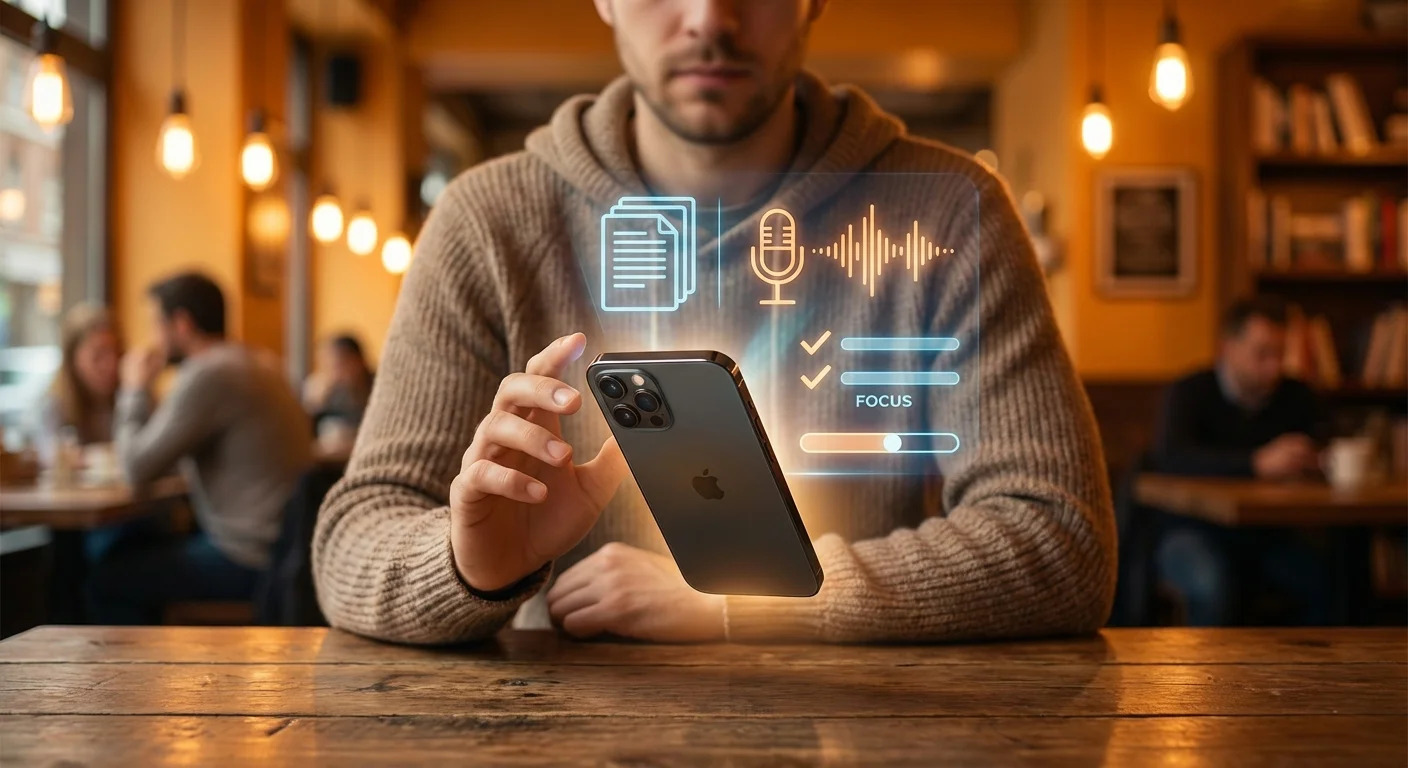
Let us paint a familiar picture: You are out grabbing your morning coffee, enjoying the freedom of remote work, when suddenly, an urgent message from your boss lights up your phone. A critical document has a typo, a client needs a Zoom link immediately, or you need to sign a contract ASAP. Panic sets in. You frantically search for a place to set up your laptop, wait for the Wi-Fi to connect, and lose precious minutes trying to put out the fire. Sound familiar?
We have all been there. But what if we told you that the sleek little device sitting in your pocket is actually a remote work powerhouse, hiding game-changing productivity features in plain sight? Most of us use our iPhones for scrolling social media, checking emails, and taking photos. However, buried deep within iOS are tools so powerful, they can entirely replace your need to rush back to your desktop. In this comprehensive guide, we are uncovering 8 hidden iPhone features that will completely change how you work remotely. Prepare to transform your smartphone into the ultimate mobile office.
Have you ever found yourself frantically tapping the screen of your iPhone, trying to place the cursor exactly between two specific letters to fix a typo in an important email? The magnifying glass is clunky, and your thumb always seems to obscure the text. This single frustration makes many remote workers wait until they are back at their laptops to send out critical communications.
Here is the secret: Your iPhone keyboard has a built-in trackpad. Simply tap and hold the spacebar. Suddenly, all the letters on the keyboard will disappear, and the entire lower half of your screen becomes a highly responsive trackpad. You can now drag your thumb around to move the cursor with pinpoint accuracy, just like you would on a laptop. If you need to highlight text, simply use a second finger to tap the screen while still holding the spacebar, and drag to select. Editing long documents or tweaking a quick Slack message on the go has never been faster or more precise.
When you are multitasking—perhaps holding a baby, carrying groceries, or balancing a coffee—navigating through app folders to find your two-factor authentication app or your Zoom client is a recipe for disaster. What if your phone had a hidden physical button that you could program to do almost anything?
Apple introduced an accessibility feature called ‘Back Tap’ that turns the entire back of your iPhone into a touch-sensitive button. By firmly double-tapping or triple-tapping the back of your phone, you can trigger custom actions. To set this up, go to Settings > Accessibility > Touch > Back Tap. Remote workers can program a double tap to instantly launch their work email, open a specific Slack channel, trigger a voice memo recording for quick brainstorming, or even activate the flashlight. It feels like absolute magic and shaves seconds off repetitive tasks throughout your busy day.
Remote work means you have the luxury to work from anywhere, but ‘anywhere’ is often incredibly loud. A bustling cafe, a noisy airport terminal, or a living room with barking dogs can make joining a professional conference call incredibly stressful. You might think you need to drop hundreds of dollars on a premium noise-canceling headset with a boom mic.
Think again. Your iPhone has a feature called ‘Voice Isolation’ that uses advanced machine learning to separate your voice from background noise. When you are on a call (including regular phone calls, FaceTime, Zoom, or Teams), swipe down from the top right corner to open the Control Center. Tap on ‘Mic Mode’ and switch it from ‘Standard’ to ‘Voice Isolation’. Instantly, the sound of the espresso machine behind you or the sirens outside your window will be completely muted to the person on the other end of the line. Your voice will come through crystal clear, ensuring you sound highly professional no matter where your remote office is located today.
Taking notes during a virtual brainstorming session or transcribing data from a physical document can be mind-numbingly tedious. Imagine someone holds up a printed document during a video call, or you are reading a physical manual and need to send a paragraph to your colleague. Typing it all out manually is a waste of your valuable time.
Enter ‘Live Text’. By simply pointing your iPhone’s camera at any text—whether it is a whiteboard, a computer screen, a printed page, or even a handwritten note—a small yellow text icon will appear in the corner of the camera app. Tap it, and your phone will magically freeze the text, allowing you to copy, paste, translate, or share it instantly. You can even use Live Text directly inside text fields. Just tap where you want to type, select ‘Scan Text’, and the camera will open in the lower half of your screen, dropping whatever it reads directly into your email or message. It is the fastest way to digitize physical information on the fly.
The biggest struggle of remote work is not getting the work done; it is knowing when to stop. When your office is also your home, the boundaries between professional and personal life blur completely. Getting a Slack notification at 9 PM while trying to watch a movie can ruin your evening relaxation.
While you may know about ‘Do Not Disturb’, Apple’s ‘Focus’ modes take boundary-setting to an entirely new level. By going to Settings > Focus, you can create a custom ‘Work’ focus. But here is the game-changer: Focus Filters. You can tie your Work Focus to a specific location (like your home office or a coworking space) or a specific time. When activated, you can set Focus Filters to actually hide certain elements within apps. For example, you can configure Safari to only show your ‘Work’ tab groups, hide your personal email account from the Mail app, and only allow notifications from your boss and colleagues. Once you clock out, the Focus mode shifts, and all those work apps disappear from your home screen, giving you your personal phone back.
If you work remotely, chances are you occasionally need to sign a contract, scan a receipt for expense reports, or digitize a physical document for your company’s records. For years, people relied on clunky flatbed scanners or paid premium subscriptions for third-party scanning apps that clutter your phone with ads.
Your iPhone already has an enterprise-grade document scanner built right into the native native Files and Notes apps. To use it, simply open the Notes app, create a new note, tap the camera icon, and select ‘Scan Documents’. The camera will automatically detect the edges of the paper, adjust for any weird angles or glare, and capture a perfectly flat, high-quality PDF. You can scan multiple pages into a single document, sign it using the markup tool with your finger, and immediately email it to your HR department without ever leaving the app.
As a remote worker, you probably type the same phrases dozens of times a day. Your Zoom meeting link, your professional email address, your phone number, or standard replies like ‘I am jumping on a call, will look at this shortly.’ Typing these out repeatedly is incredibly inefficient.
The ‘Text Replacement’ feature is the ultimate time-saver. Go to Settings > General > Keyboard > Text Replacement. Here, you can create short, memorable trigger words that instantly expand into full sentences or paragraphs. For example, you can set ‘zzm’ to expand into your full Zoom meeting URL and dial-in details. Set ’eml’ to instantly type out your long corporate email address. Set ‘brbcall’ to output ‘I am currently on a client call and will get back to you in 30 minutes.’ Once you set up a robust library of these shortcuts, your mobile communication speed will absolutely skyrocket, making you look incredibly responsive to your team.
Collaborating on research with remote team members usually involves an endless, messy chain of Slack messages filled with random URLs. Whether you are planning a corporate retreat, researching competitor websites, or compiling resources for a project, keeping track of links is a nightmare.
Safari’s ‘Shared Tab Groups’ completely revolutionize collaborative browsing. Open Safari, tap the tabs button, and create a new Tab Group. You can then invite your colleagues to this group. Any website you add to this group instantly appears on their devices in real-time. If they open a new tab, you see it. You can all browse the same collection of websites simultaneously, completely eliminating the need to copy and paste links back and forth. It creates a shared digital workspace right inside your browser.
To summarize just how impactful these features can be, take a look at how the ‘Old Way’ of handling remote tasks stacks up against the ‘iPhone Way’.
| Remote Work Task | The Traditional Method | The Hidden iPhone Feature |
|---|---|---|
| Fixing Typos | Waiting to use a laptop mouse | Spacebar Trackpad for precision editing |
| Background Noise | Buying a $300 noise-canceling mic | Voice Isolation mode in Control Center |
| Data Entry | Manually retyping from physical papers | Live Text instant camera scanning |
| Scanning Docs | Paid third-party apps with watermarks | Built-in scanner in the Notes App |
| Setting Boundaries | Manually turning off notifications daily | Location-based Focus Filters |
By mastering these eight hidden features, you are not just saving minutes; you are fundamentally changing the way you approach your workday. You will no longer feel tethered to your desk or anxious about stepping away for a coffee. Your iPhone is a highly capable remote work companion, ready to handle almost anything your job throws at you.
Now that you know the secrets, it is time to optimize your device. Take ten minutes today to set up your Text Replacements, configure your Work Focus, and program your Back Tap. Your future remote-working self will thank you!