
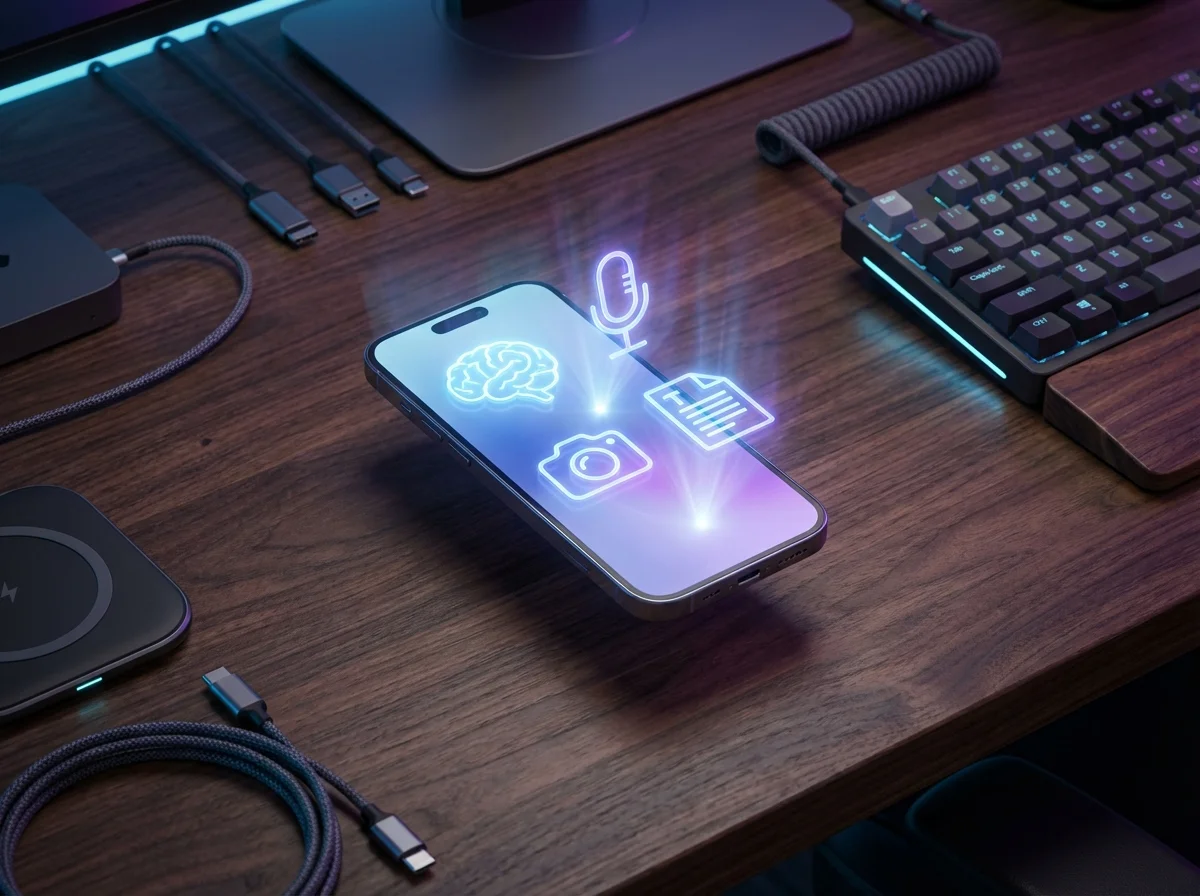
Is Your iPhone Smarter Than You Think?
Every day, millions of people use their iPhones simply to scroll through social media, send text messages, and check their emails. But resting in the palm of your hand is a hyper-advanced pocket supercomputer powered by an intricate web of artificial intelligence and machine learning. Over the last few iOS updates—and especially with the dawn of Apple Intelligence—your iPhone has quietly gained a mind-blowing suite of AI tools.
You might know about Siri, but Apple has seamlessly woven invisible, on-device AI into the fabric of iOS. These are not gimmicks; they are deeply practical, time-saving features designed to act as your digital second brain. In this article, we are pulling back the curtain on eight hidden iPhone AI features you probably didn’t know existed. Once you learn how to use them, you will wonder how you ever lived without them.
1. Visual Look Up: Demystifying Laundry Tags and Car Dashboards
We’ve all been there: staring at the cryptic hieroglyphics on a clothing care tag, wondering if we are about to shrink our favorite sweater. Most people don’t realize that the iPhone’s Photos app has a powerful AI-driven image recognition tool built right in, and it goes far beyond identifying dog breeds or houseplants.
How to use it: Snap a clear photo of your garment’s laundry tag. Open the photo, and look at the ‘i’ (info) icon at the bottom of the screen. If it has tiny stars shimmering around it, the AI has recognized the symbols. Swipe up, and tap ‘Laundry Care.’ Your iPhone will instantly translate every symbol—telling you the exact wash temperature, drying method, and ironing instructions.
This same AI model works for those mysterious warning lights on your car’s dashboard. Take a photo of the dashboard light, swipe up, and tap ‘Auto Symbol.’ The AI will explain what the warning means, potentially saving you a trip to the mechanic.
2. Personal Voice: Clone Your Own Voice Using On-Device AI
Voice cloning used to belong in science fiction movies or high-end recording studios. Now, thanks to the immense power of your iPhone’s Neural Engine, you can create a digital replica of your own voice in just a few minutes. Originally designed as an accessibility feature for individuals at risk of losing their ability to speak, Personal Voice is a staggering demonstration of localized machine learning.
How to use it: Go to Settings > Accessibility > Personal Voice, and tap ‘Create a Personal Voice.’ Your iPhone will prompt you to read aloud a series of 150 randomized phrases. Once finished, the device processes the audio overnight while charging. After it’s done, you can use Live Speech to type out text, and your iPhone will speak it aloud in a voice that sounds incredibly just like you. Because it relies entirely on on-device AI, your voice data remains secure and private.
3. Live Text in Videos: Extract Information from Moving Footage
You may already know that your iPhone can pull text out of a static photograph, but did you know it can do the exact same thing with a moving video? This feature is an absolute game-changer for students, programmers, or anyone watching tutorials.
How to use it: Imagine you are watching a coding tutorial, a lecture with a whiteboard, or a recipe video on your phone. Simply pause the video at the exact moment the text you want is visible on the screen. Tap and hold the text as if it were a normal webpage. The AI will instantly lock onto the text, allowing you to highlight, copy, translate, or share it. You can copy entire blocks of code or complex URLs from a YouTube video and paste them directly into your notes without typing a single character.
4. Generative AI Photo Clean Up: The Ultimate Photobomb Eraser
For years, third-party apps charged hefty subscriptions to remove unwanted people or objects from the backgrounds of photos. With the introduction of Apple Intelligence, your iPhone now features a native, deeply integrated generative AI ‘Clean Up’ tool that handles this flawlessly.
How to use it: Open a picture in the Photos app, tap Edit, and select the Clean Up tool. The AI will automatically analyze the image, understanding depth, lighting, and context. It will subtly highlight background distractions—like a stray trash can or a stranger walking behind you. Tap the highlighted object, and the generative AI will erase it, seamlessly filling in the background pixels as if the object was never there. It’s professional-grade retouching powered entirely by your phone.
5. AI Summaries in Safari: Instantly Digest Long Articles
We live in an era of information overload. Sometimes you just need the core facts from a 3,000-word article without having to scroll past a blogger’s life story. Safari’s new AI capabilities utilize advanced Large Language Models (LLMs) to read and summarize web pages for you.
How to use it: When reading a compatible article in Safari, tap the Reader mode icon on the left side of the address bar. Alongside removing ads and formatting clutter, the AI will instantly generate a concise paragraph summarizing the entire article, followed by a bulleted list of key takeaways. It is the ultimate productivity hack for busy professionals and students trying to consume research quickly.
6. Transformer-Powered Predictive Text: The Keyboard That Learns ‘You’
Have you noticed that your iPhone’s autocorrect has gotten significantly smarter recently? That is because Apple quietly replaced its old autocorrect dictionary with a state-of-the-art ‘Transformer’ language model—the same foundational AI architecture that powers tools like ChatGPT.
How to use it: There is nothing to turn on; it works automatically. But the magic lies in how it adapts to you. The Transformer model learns your specific phrasing, your favorite slang, and even the names of your pets. It can now predict entirely complete sentences inline as you type. If you frequently type out a specific sign-off for emails, just start the first word, and tap the spacebar to let the AI finish the rest of the sentence. It’s a subtle feature, but it shaves minutes off your typing time every single day.
7. Natural Language Memory Generation: Directing Your Own AI Movies
Your iPhone’s Photos app creates cute ‘Memories’ automatically, but the new AI allows you to take the director’s chair. You can now use natural language prompts to tell your iPhone exactly what kind of movie you want it to edit together.
How to use it: Open the Photos app, go to Memories, and find the prompt bar. Type something highly specific, such as: ‘A cinematic movie of my dog running on the beach in 2023, set to upbeat pop music.’ The AI understands the context, searches your library for the best shots of your dog at the beach, arranges them to the beat of the music, and creates a shareable video montage in seconds. It is like having a professional video editor living inside your phone.
8. Auto-Transcription in Voice Memos & Call Recording
Taking notes during a lecture or an important phone call is a thing of the past. The iPhone now uses sophisticated speech-to-text AI models to generate real-time transcripts of your audio.
How to use it: Open the Voice Memos app and hit record. As you speak, the AI will transcribe the audio into text live on the screen. Furthermore, with iOS 18, when you are on a phone call, you can tap the record button (which notifies all parties for privacy), and the AI will generate a complete, searchable text transcript of the conversation, along with a neat summary of the call’s key points once you hang up. It’s a lifesaver for business meetings and interviews.
Supercharge Your Productivity with More AI
Love your iPhone’s hidden AI? Take your productivity to the next level with this incredible bundle of 100+ AI assistants designed to automate your digital life and business workflows.
Summary of Hidden iPhone AI Features
| Feature Name | Primary Use Case | Required OS (Minimum) |
|---|---|---|
| Visual Look Up | Identifying laundry tags & car symbols | iOS 17+ |
| Personal Voice | Cloning your voice for text-to-speech | iOS 17+ |
| Live Text in Videos | Copying text from paused moving video | iOS 16+ |
| Clean Up | Removing background objects in photos | iOS 18.1+ (Apple Intelligence) |
| Safari Summaries | Quick bullet points of long web articles | iOS 18.1+ (Apple Intelligence) |
| Transformer Keyboard | Advanced autocorrect and sentence prediction | iOS 17+ |
| Natural Language Memories | Creating custom video montages via text prompt | iOS 18.1+ |
| Call Transcription | Real-time text records of phone conversations | iOS 18.1+ |
Frequently Asked Questions (FAQ)
Does using these AI features drain my iPhone battery faster?
While heavy processing tasks like creating a Personal Voice or generating complex photo edits use battery, Apple has optimized these features to run efficiently on the Neural Engine built into their custom silicon chips. Most daily AI features, like predictive text and live text, consume negligible extra battery power.
Are my AI voice clones and transcriptions sent to Apple?
No. Apple prioritizes privacy by keeping the vast majority of machine learning on-device. Your Personal Voice, photo analysis, and voice memo transcriptions are processed locally on your iPhone’s hardware. Even with advanced Apple Intelligence features that require cloud processing, Apple uses ‘Private Cloud Compute’ which cryptographically ensures your data is never stored or accessible to anyone, not even Apple.
Why don’t I have the ‘Clean Up’ or ‘Safari Summary’ features on my iPhone?
Features labeled under ‘Apple Intelligence’ (like Clean Up, Safari Summaries, and Custom Memory Prompts) require significant processing power. They are exclusively available on the iPhone 15 Pro, iPhone 15 Pro Max, and the entire iPhone 16 lineup running iOS 18.1 or later. Older iPhones do not have the necessary RAM or Neural Engine capacity to run these specific LLMs locally.
Do I need an internet connection to use Live Text or Visual Look Up?
Live text extraction from photos and videos works completely offline because the machine learning model lives on your device. However, Visual Look Up (like identifying a car dashboard symbol) may require an internet connection to fetch the specific explanations and context from the web.
Can I turn off the AI autocorrect if I don’t like it?
Yes. If you prefer the old-school way of typing without AI predictions or aggressive autocorrect, you can simply go to Settings > General > Keyboard and toggle off ‘Auto-Correction’ and ‘Predictive Text.’