
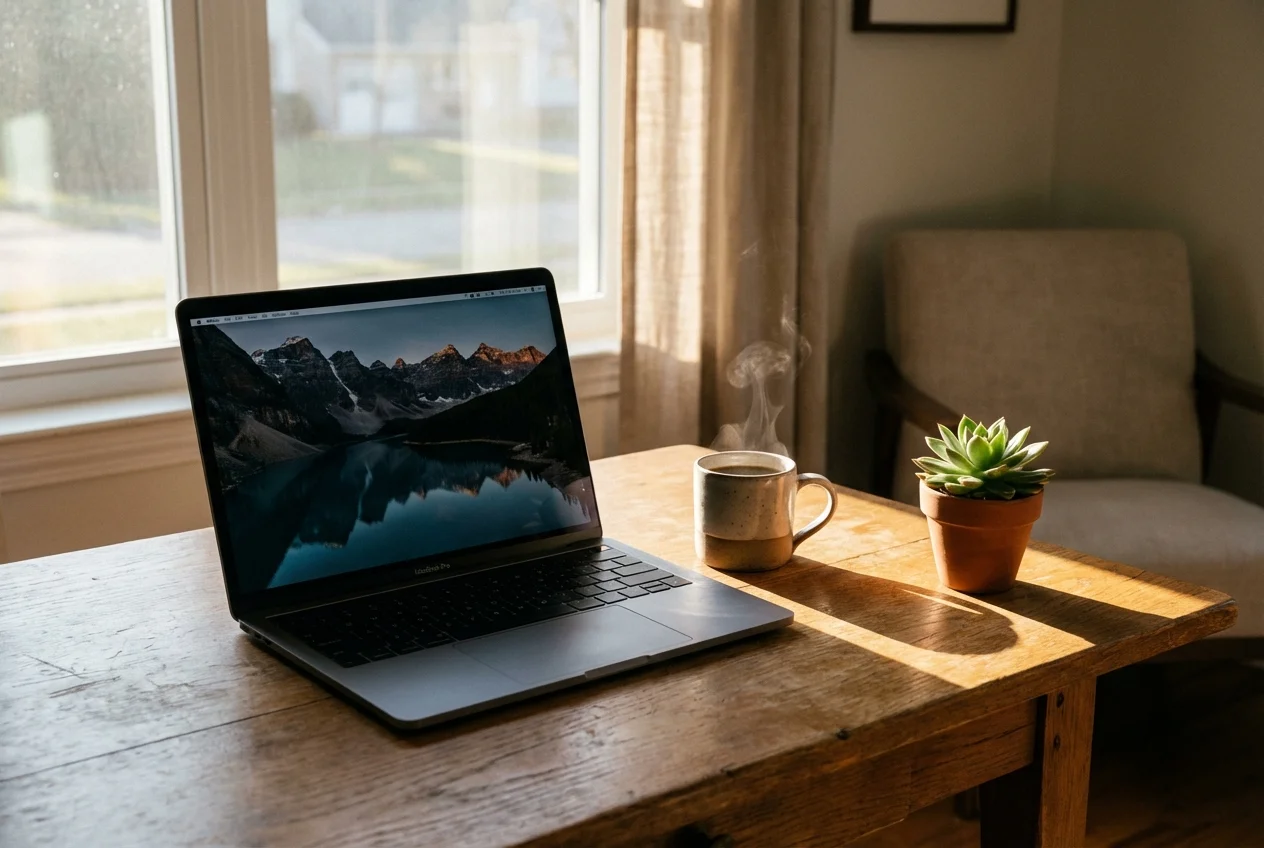
Are you reading this with a lingering headache, a slight burning sensation in your eyes, and a profound sense of mental exhaustion? If so, you are not alone. Welcome to the modern epidemic of screen fatigue. We spend an average of seven hours a day staring at glowing rectangles, but the real drain on our energy isn’t just the blue light—it is the digital chaos living inside those screens.
Think about your current digital workspace. Is your desktop a graveyard of files named ‘Document_Final_v3_REAL_final.pdf’? Are your browser tabs so small that you can only see the first letter of the webpage icon? Does your phone buzz every three minutes with notifications that demand your immediate attention? This constant state of visual and psychological clutter creates cognitive overload. Your brain is essentially running too many background apps, draining your mental battery before it even reaches lunchtime.
But here is the good news: you do not need a weekend retreat in the woods or a complete technology detox to find relief. You can drastically reduce your cognitive load and cure your screen fatigue in less time than it takes to drink a cup of coffee. The secret lies in a highly structured, ruthless 10-minute digital declutter routine. Let’s break down exactly how to reclaim your focus, reduce visual friction, and create a digital environment that serves you, rather than drains you.
The Hidden Science of Digital Clutter
Before we dive into the routine, it is crucial to understand why digital clutter makes us so tired. According to neuroscience, our brains prefer order. When our visual field is crowded with disorganized stimuli—like a messy computer desktop or a cluttered email inbox—our visual cortex has to work overtime to process the environment. This constant processing depletes our limited reservoir of mental energy.
Furthermore, digital clutter triggers decision fatigue. Every open tab is an unmade decision. Every unread email notification is a micro-stressor demanding a response. When you compound these micro-stressors over the course of an eight-hour workday, the result is deep, undeniable cognitive fatigue. By eliminating the visual noise, you immediately reduce the processing power required by your brain, freeing up energy for actual, meaningful work.
The Ultimate 10-Minute Digital Declutter Routine
Set a timer on your phone for exactly 10 minutes. This is not about achieving digital perfection; this is about rapid triage and taking back control of your immediate visual workspace. Let’s go through the steps.
Minute 0-2: The Desktop Dump
Your desktop is the digital equivalent of your physical desk. If it is covered in trash, you cannot work efficiently. We are going to solve this in less than two minutes using a brutal but effective method called ‘The Desktop Dump’.
- Create a single new folder on your desktop. Name it ‘To Sort [Today’s Date]’.
- Select every single file, folder, screenshot, and shortcut currently littering your desktop.
- Drag and drop all of them into this new folder.
- Enjoy the immediate psychological relief of a pristine, empty screen.
Do not worry about organizing those files right now. The goal is visual clarity. You can schedule 15 minutes on a Friday afternoon to sort through that folder, but for now, the visual chaos has been eliminated.
Minute 2-4: Browser Tab Bankruptcy
Browser tabs are the ultimate silent productivity killers. They act as a visual guilt-trip of things you still need to read, buy, or finish. It is time to declare Tab Bankruptcy.
- Look at your current browser window. If there are tabs you genuinely need for the task you are working on *right now*, keep them open.
- For everything else, use a browser extension like ‘OneTab’ or your browser’s ‘Bookmark All Tabs’ feature to save them into a specific folder.
- Close the browser entirely and reopen a fresh, single window.
By doing this, you are not losing your information, but you are removing the cognitive weight of having 40 open tasks staring you in the face.
Minute 4-6: The Notification Purge
Every ping, ding, and banner notification pulls your brain out of deep focus and forces it to context-switch, a process that burns massive amounts of cognitive fuel. Let’s silence the noise.
- Go to your computer’s system settings. Turn on ‘Do Not Disturb’ or ‘Focus Assist’.
- Go to your phone settings and turn off all non-essential push notifications. If it is not a direct message from a human being (like a text or a phone call), it does not need to interrupt you. Disable alerts for social media, news apps, and shopping apps.
- Close your email application. Only open it during designated times, rather than keeping it running in the background all day.
Minute 6-8: The Mobile Home Screen Cleanse
Your smartphone is a portal, but it is often designed like a slot machine to capture your attention. The first page of your phone should only contain tools, not temptations.
- Remove all social media, news, and infinite-scrolling apps from your primary home screen. Bury them in folders on the second or third page.
- Keep only utility apps on the home page: Maps, Calendar, Camera, Notes, and Phone.
- Bonus tip: Turn your phone screen to greyscale mode. By removing the vibrant, dopamine-triggering colors, your phone instantly becomes less addictive and less fatiguing to look at.
Minute 8-10: The Visual Rest and Reset
For the final two minutes, we are going to optimize your screens for biological comfort.
- Change your computer and phone wallpapers to something incredibly simple, like a solid dark color, a minimalist pattern, or a calming nature scene. Avoid busy, high-contrast photos.
- Enable ‘Dark Mode’ across your operating system and primary applications. Dark mode drastically reduces glare and eye strain, especially in dimly lit environments.
- Look away from your screen. Practice the 20-20-20 rule: look at something 20 feet away for 20 seconds. Blink rapidly to rehydrate your eyes.
The Impact of the 10-Minute Declutter
The difference between a chaotic digital workspace and a streamlined one is profound. Let’s look at the contrast:
| Element | Before Declutter (High Fatigue) | After Declutter (High Focus) |
|---|---|---|
| Desktop | Cluttered with 50+ mixed files | Empty, serene, single ‘To Sort’ folder |
| Browser | 30+ tiny, unreadable tabs | Only 1-3 essential tabs open |
| Notifications | Constant visual and auditory interruptions | Silent, controlled, scheduled check-ins |
| Phone Screen | Bright, colorful, dopamine-driven | Greyscale, utility-focused tools only |
| Mental State | Scattered, overwhelmed, exhausted | Calm, focused, intentional |
Want to Supercharge Your Mental Clarity?
Combine your newly decluttered workspace with The Genius Wave, a breakthrough audio track designed to activate theta brainwaves, eliminate brain fog, and lock you into deep focus.
Making Digital Minimalism a Daily Habit
Decluttering your digital life is not a one-and-done event; it is a continuous practice. Just like you would not leave dirty dishes in the sink for weeks, you shouldn’t let digital residue build up on your machines. By integrating this 10-minute routine into your weekly schedule—perhaps every Friday afternoon before you sign off, or every Monday morning before you start working—you can fundamentally change your relationship with technology.
Screen fatigue is not an inevitable consequence of modern work. It is a symptom of poor digital hygiene. When you remove the friction, the visual noise, and the cognitive baggage from your screens, you will find that your energy naturally returns. You will be able to work faster, think clearer, and close your laptop at the end of the day without feeling like your brain has been run through a blender.
Frequently Asked Questions
What exactly is digital clutter?
Digital clutter refers to any unnecessary digital artifacts that consume storage space on your devices and, more importantly, occupy cognitive space in your mind. This includes tens of thousands of unread emails, duplicate photos, unused apps, sprawling folders of outdated documents, desktop icons, and an excessive number of open browser tabs. Just like physical clutter in a room, digital clutter creates a subtle but constant background stress that drains your energy.
How often should I perform this 10-minute digital declutter routine?
For the best results, aim to do a quick version of this routine once a week. Friday afternoons are excellent because they allow you to close out the week with a clean slate, ensuring you don’t carry digital stress into your weekend. Over time, you will find that the routine takes less than 5 minutes because you are actively maintaining a cleaner digital environment.
Can organizing my computer really cure physical screen fatigue?
Yes, to a significant extent! Screen fatigue is a combination of physical eye strain and psychological cognitive overload. While decluttering won’t stop the blue light (which is why dark mode and the 20-20-20 rule are included in the routine), reducing visual chaos drastically lowers the amount of processing your brain has to do. When your eyes aren’t darting around a messy screen trying to find a specific file, your eye muscles and your brain relax, significantly reducing fatigue.
What should I do with the ‘To Sort’ folder I created during the routine?
The ‘To Sort’ folder is a temporary holding zone. Schedule a 15 to 30-minute block once a month to go through this folder. Delete what you don’t need, and file the remaining documents into their proper, organized folders in your computer’s main storage drive. The key is to keep the chaos hidden and contained until you are in the right mindset to actually organize it, rather than letting it distract you during your daily tasks.
How do I prevent my browser tabs from spiraling out of control again?
The most effective strategy is a combination of mindset and tools. Adopt the ‘One Task, One Window’ mindset. If you are writing a report, only have tabs open related to that report. Use tools like the ‘OneTab’ extension, which consolidates all your open tabs into a simple list with one click. Additionally, be ruthless with bookmarks. If an article is interesting but not urgent, send it to a ‘Read It Later’ app like Pocket or Notion, and close the tab immediately.